Setup
In this topic we will use an existing static mesh actor and add deformation to it.
tip
This only describes the most basic setup. Chaos Vehicles and AVS Vehicles have a separate topic.
- Decide what static mesh you want to deform and create a Deformable Mesh of the static mesh using the Deformation Data Tool.
- Add a Deformable Mesh Component to your actor below the static mesh that you want to deform:
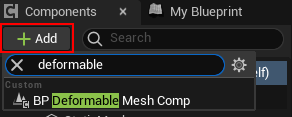

- Make sure the "StaticMesh" (parent of BP_DeformableMeshComp)...
- ... is visible and not hidden.
- ... displays the correct static mesh (same as the deformable mesh).
- ... has collision enabled (IMPORTANT).
- ... has
Simulation Generates Hit Eventsenabled (IMPORTANT).
- Select the previously created Deformable Mesh Component (BP_DeformableMeshComp) and configure it (see Settings). The most important settings are:

- [MANDATORY] Settings - Deformable Mesh: Here you have to select your Deformable Mesh (see Step 1).
- Settings - Deformation - None Physics - Mass Override: This is MANDATORY when your static mesh does NOT simulate physics.
- Select the Render Backend: GPU uses the custom GPU renderer; CPU (Deprecated) uses the compiled CPU mesh backend. GPU mode still requires the prepared asset from Step 1.
- Test a hit and reset in Play mode. Optional Damage Zone boxes must be children of the intended deformation component; they are not assigned actor-wide automatically.
info
The Deformable Mesh property replaces our previous "Mesh Data Table" and "Row Name" properties.